

 Genre and Categories Settings
Please select the genre and category that best match your product. The selected category will appear on the ACON category product page, and the genre will be displayed under the genre tab at the top of ACON.
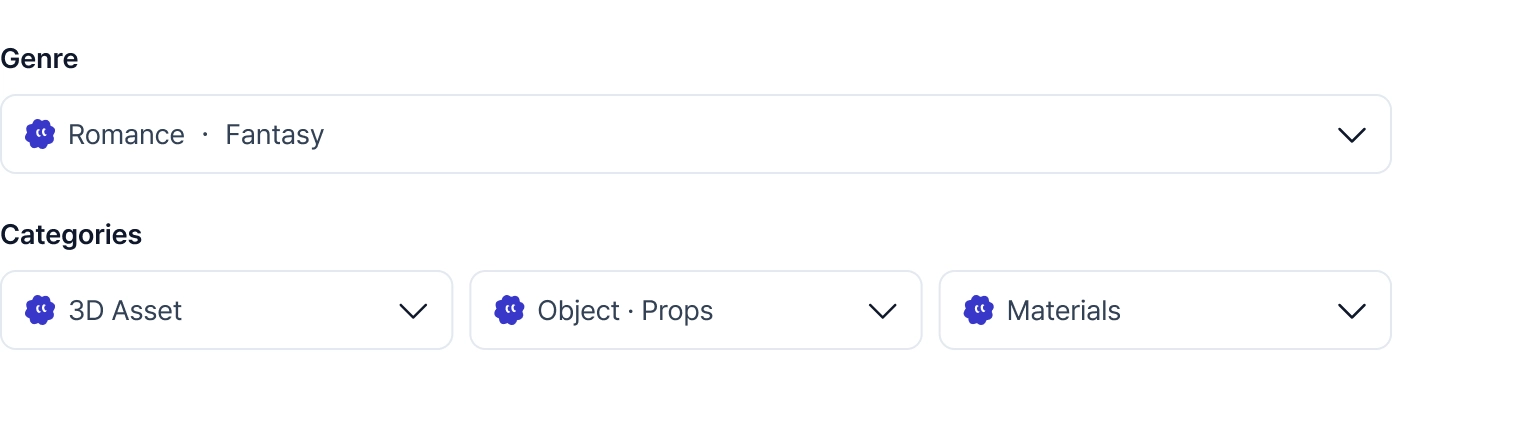
Our AI assistant will automatically set the genre and category based on the image. If the settings are incorrect, please edit them yourself.
Category map
Refer to the category map if you're not sure which category your product falls under.
The categories are first classified according to the product type, then they are classified according to the composition of the product a second and third time.
Please exercise caution when selecting the category for these types of products!
•
3D and 2D products (such as speech bubbles, frames, effect lines, and sound effects) should be registered as visual effects.
•
Procreate brushes should be registered under Brushes > Sketch/Coloring.
.png&blockId=372e0c5b-a984-8074-883d-e29300e6ab9e)
The options for the 2nd and 3rd categories will vary depending on your selection of the primary category.
Set Tag
Set product tags related to your product to increase its search visibility.
You can set up to 10 tags, and products will be filtered in search results based on the tags you set.

The AI assistant recommends tags based on the image. Tap a recommended tag to automatically add it. If you can't find the tag you're looking for, you can search for it and add it manually.
Tag list
Please refer to the list of all tags provided by ACON.
The list of tags is lengthy, so review it after downloading.
Hover your mouse over the top right corner of the list to reveal the download icon!
After downloading the list, use Ctrl+F to search for the tags you need.
The list of tags is subject to updates. Check back regularly for updates! (Last updated December 29, 2025)
Set the Industry and Adult Content
Please select the field in which the product will be used (COMICS or GAME)
If you only provide files compatible with SketchUp or Clip Studio you can only select the comics field.
If you select gameas the field of use, you must provide the required game information.

If the field is set incorrectly, it may be changed arbitrarily during the review process.